


 Log In









If you’ve ever built a Knack app with more than one type of user, you probably know the moment. You finish a page, tweak a permission, adjust a workflow, then you pause and think:
“Okay… but what does this actually look like for them?”
Until now, answering that question has admittedly been a pain point for Knack users. It usually meant logging in and out of test accounts, resetting passwords, borrowing credentials, or asking someone else to click around and report back. It worked, but it was slow, clunky, and never felt great — especially when you were testing changes in a live app.
That’s exactly the problem our brand new feature, Test as User, is designed to solve.
A clearer way to understand the user experience
Most production apps aren’t single-user experiences; they include different roles, different permissions, and different paths through the same system. A change that looks correct from the builder can behave very differently once it’s viewed as a specific user. If you’re a builder, it’s important to understand your app behavior from all possible perspectives.
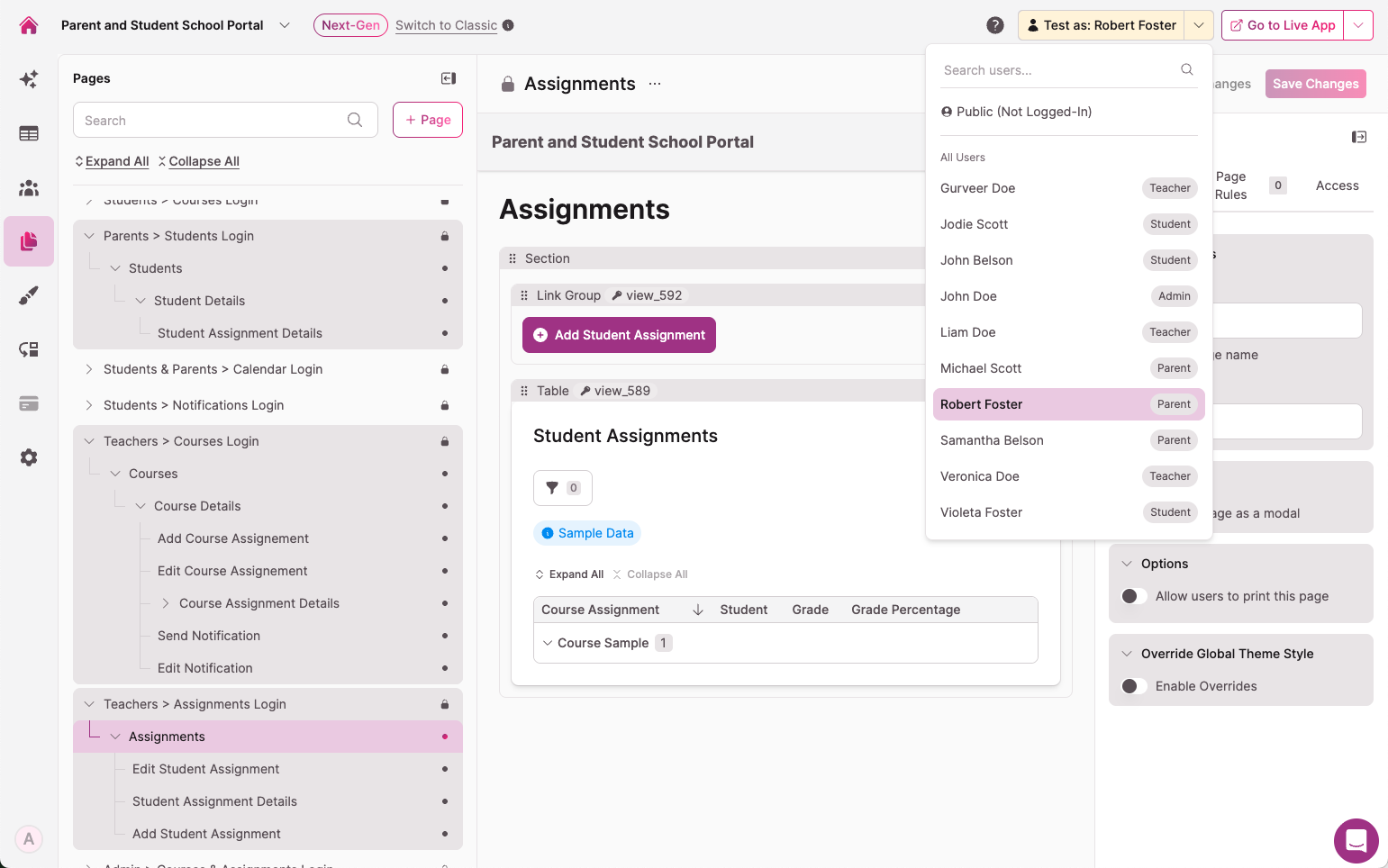
Test as User addresses this by letting you temporarily step into your app as any user or role to preview their experience with it, directly from the builder. You can move through pages, interact with records, and trigger workflows as if you were that person — without logging in as them, touching anyone’s credentials, or disrupting the live app.
If you’re building internal tools, customer portals, or role-based workflows, this gives you something you’ve probably wanted for a long time: validation and confidence in your end-user experience. Instead of guessing how an app behaves for a teacher versus a student, or an admin versus a customer, you can see it for yourself in seconds. Here’s how.
How to Use Test as User
Test as User is built into the parts of Knack where testing already happens.
You can access it from:
- The AI Builder, where you can switch between users or preview the public (non-logged-in) experience. Simply navigate to the “Test As” selector in the upper-right area of the Live App Preview pane.
- The Visual Builder, where you can open a full-screen view of the app and interact with it as a selected user. You can find the “Test As” selector at the top-right area of the screen.
From here, you can navigate the app, submit forms, edit records, and trigger workflows just as that user would (plus much more). There’s no separate testing environment to configure and no extra setup required — you’re working with the same app, just from a different point of view.
Designed to test safely
Before you ask, we designed Test as User to be as undisruptive as possible. We understand that one of the biggest concerns with testing user-specific behavior is unintended side effects, so we’ve gone to great lengths to mitigate them.
When you use Test as User, you remain logged in as yourself in the builder, and live users can continue using the app as normal. Actions taken while testing are still recorded, but they’re clearly marked in record history to show that they were performed during a test session and under which user context.
That visibility makes it easier to review changes later, understand how records were created or updated, and avoid confusion in busy apps with a lot of activity.
A more confident way to build
Test as User doesn’t change what you can build in Knack, but it does change how confidently you can validate what you’ve built. And we figure that’s important.
When you can see your app the way your users see it, permission issues are easier to catch, workflows are easier to verify, and changes feel safer to ship. Over time, that tends to mean fewer surprises and smoother launches, especially as apps grow more complex.
If you build apps with multiple users or roles, this quickly becomes one of those features you reach for without thinking about it.
Learn more
Test as User is available now in the Knack Builder. For a deeper walkthrough and additional examples, you can read the full help article here or check out this tutorial video.